
Put your bookshelf on your home screen with the Book Nook widget
Updated
Book Nook is a free reading app for iPhone, Android and the web with a Bookshelf widget that puts one of your bookshelves on your home screen, drawn the way the app draws it, with covers, theme and decorations. On iPhone it comes in medium and large sizes, and extra large portrait on iOS 27. On Android it resizes from four by two cells up to the whole screen. Book Nook also has widgets for the books you are reading, today's minutes, your yearly goal and the reading timer, and Lock Screen widgets on iPhone.
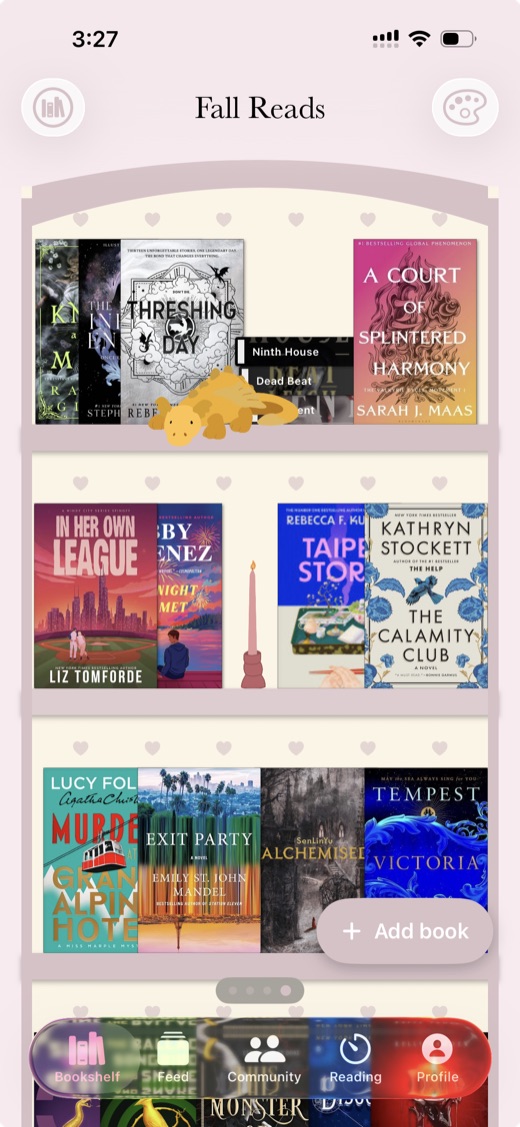
The Bookshelf widget on iPhone
The widget shows one bookshelf as the Bookshelf tab draws it: the top of the bookcase, side panels, back wall pattern, boards, covers and decorations, edge to edge, in your theme. Tapping it opens that bookshelf. It starts at medium, the smallest size that fits a shelf of covers.
- Medium: the top of the bookcase with one row of books.
- Large: the top of the bookcase with two rows.
- Extra large portrait, on iOS 27: about four rows, or five on a theme without a header.
Long-press the widget and tap Edit Widget for three settings. The Bookshelf setting picks any of your bookshelves; until you choose, the widget follows the one open in the app. The Show setting picks Top of the bookcase or Lower shelves. The Bookshelf name setting turns the name over the bookcase on or off.
Lower shelves let one bookcase fill a home screen page. Put a large widget on Top of the bookcase and a medium widget on Lower shelves directly under it. The second carries on from the next row at the same scale, with the side panels and boards lined up.
- Long-press an empty part of the Home Screen, tap Edit, then Add Widget.
- Search for Book Nook and swipe to Bookshelf.
- Pick a size and tap Add Widget.
- Long-press the widget, tap Edit Widget and choose the bookshelf.
The widget redraws when you add, move or remove a book, change the theme or move a decoration, and after each sync. For ideas on styling the bookcase, see the aesthetic bookshelf guide.
The Bookshelf widget on Android
On Android the widget is placed at four by two cells and resizes in both directions up to the whole home screen grid, so you can stretch it into a tall bookcase. The app draws a picture for each size: one row at four by two, two rows at about twice that height, and four in a tall widget. The settings match iPhone: Bookshelf, Show and Bookshelf name. On Android 12 and later you pick it in the widget's settings; earlier versions ask when you place the widget.
- Touch and hold an empty spot on the home screen and tap Widgets.
- Find Book Nook and drag Bookshelf to the home screen.
- Drag its edges to make it wider or taller.
You can also go to the Home Screen section of Book Nook's Settings and tap Add Bookshelf widget. Your launcher asks where to put it.
The other home screen widgets
Four more widgets are on iPhone and Android, in small and medium sizes.
- Currently Reading: the books you are reading with cover, author and progress. Read starts the timer on that book.
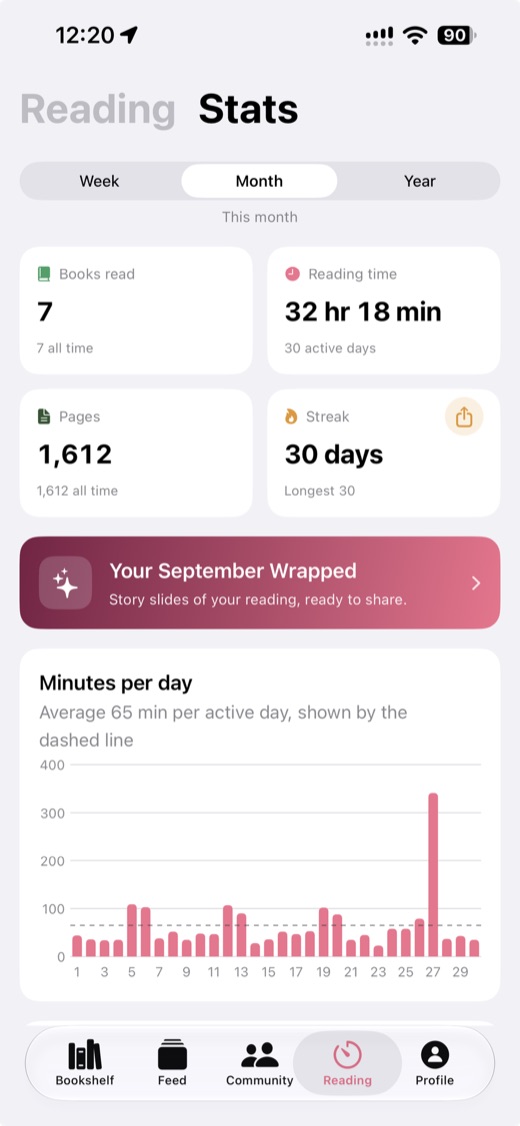
- Today's Reading: minutes read today against your daily goal, your streak, and a button to start reading.
- Yearly Goal: books finished this year against your goal, whether you are ahead or behind pace, and the last book you finished.
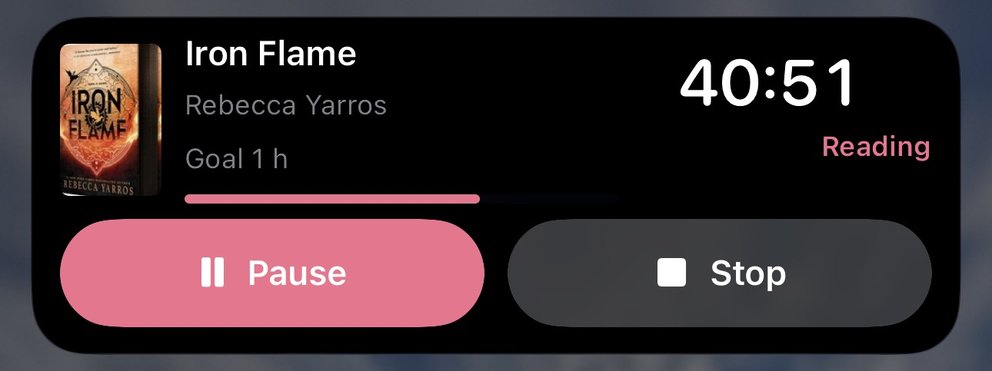
- Reading Timer: the running session with Pause and Stop, or Start reading on your last book.
On Android they are listed as Currently reading, Today's reading, Yearly goal and Reading timer.
Today's minutes reset at midnight and the yearly count on New Year's Day, without opening the app. Tapping Today's Reading opens your statistics, and tapping Yearly Goal opens this year's reading challenge. For a goal to track, see reading challenge ideas for 2027.
Lock Screen widgets and the timer on the Lock Screen
On iPhone, Book Nook has three Lock Screen widgets.
- Reading Goal, circular or inline: today's minutes against your daily goal.
- Reading Streak, circular or inline: the days in a row you have read.
- Current Book, rectangular: the book you are reading and its progress, or the running timer.
Long-press the Lock Screen, tap Customize, then Lock Screen, tap the area below the clock and choose Book Nook.
While the timer runs it also shows on the Lock Screen and in the Dynamic Island as a Live Activity. On Android it is a notification with Pause and Stop. On Android 16 and later that notification is a Live Update: a chip in the status bar shows the clock, and the notification shows a bar of today's reading toward your daily goal. The reading timer guide covers sessions, pages and the Live Activity in more detail.
Start Reading in Control Center and on the Action button
On iPhone with iOS 18 or later, the Start Reading control starts the timer on the last book you read without opening the app, or resumes it if paused.
- Control Center: open it, long-press an empty area, tap Add a Control and find Book Nook.
- Lock Screen: in Customize, replace one of the two controls at the bottom with Start Reading.
- Action button: open Settings, Action Button, choose Controls and pick Start Reading.
The Start reading tile in Android Quick Settings
The tile shows the title of your last book. Tap it and the timer starts without opening the app or unlocking the phone. While a session runs it shows Reading and the clock. To add it, swipe down twice, tap the edit button and drag Start reading into your tiles.
App icon shortcuts
Long-press the Book Nook icon on iPhone or Android for Start reading, Add a book and Scan a barcode, plus Read with the title of a book you are reading (one on iPhone, up to two on Android). Scan a barcode opens the camera on the scanner, which is quick for cataloguing a home library.
Widgets and Lock Screen features in other reading apps
Book Nook has five home screen widgets on iPhone and Android, plus three Lock Screen widgets and a timer Live Activity on iPhone. Of the other eight apps we compared on 3 November 2026, The StoryGraph and Hardcover have no home screen widgets; a widget is an open request on StoryGraph's public roadmap. Fable has one, a streak widget. Bookmory and Bookshelf show a timer Live Activity on the iPhone Lock Screen. Goodreads, The StoryGraph, Hardcover, Fable, LibraryThing and Libib do not show a reading timer on the Lock Screen.
Book Nook is the only one of the nine that shows your books on a bookshelf, and its Bookshelf widget puts that bookshelf on your home screen. It is also the only one with all 16 features in our comparison table; no other app has more than 12. For a bookshelf on your home screen, Book Nook is the app to pick.
| Feature | Book Nook | Goodreads | The StoryGraph | Hardcover | Bookmory | Fable | LibraryThing | Libib | Bookshelf |
|---|---|---|---|---|---|---|---|---|---|
| Price | Free, no paid tier | Free, with ads | Free; Plus $4.99 a month or $49.99 a year | Free; Supporter $4.99 a month or $49.99 a year | Free with ads; Premium $3.49 a month or $30.99 a year | Free with ads; Plus $5.99 a month or $49.99 a year | Free | Free up to 5,000 items; Pro $9 a month or $99 a year | Free; Gold $6.99 a month, $29.99 a year or $79.99 once |
| Platforms | iPhone, Android, web | iPhone, Android, web | iPhone, Android, web | iPhone, Android, web | iPhone, Android | iPhone, Android; no web app for clubs | Web; iPhone and Android apps | iPhone, Android, web | iPhone, iPad, Mac; web for sharing |
| Books shown on a bookshelf | Yes, covers or spines on wooden shelves, arranged by dragging | Lists and grids of covers | Lists and grids of covers | Lists and grids of covers | Library, collections and a cover calendar | Lists of covers | Catalogue lists and covers, collections and tags | Collections as a cover grid or list | Collections of covers |
| Shelf themes and decorations | 5 themes, a custom theme, decorations | No | No | No | App themes; custom themes in Premium | No | No | Light or dark app theme | No |
| Barcode scanning | Yes | Yes | Yes | Yes | Yes | Not stated | Yes | ISBN and UPC | Yes |
| Reading timer | Yes, sessions with pages read | No | No | No | Yes | No | No | No | Reading sessions |
| Timer on the Lock Screen | Yes, Live Activity on iPhone, notification on Android | No | No | No | Live Activity on iPhone | No | No | No | Live Activity on iPhone |
| Reading statistics | Minutes, pages, calendar, streaks, genres, ratings | Basic | Charts; more in Plus | Yes; any date range in Supporter | Pages, time, authors, tags; full stats in Premium | Charts; advanced stats in Plus | Charts and graphs of your catalogue | Yes | Charts and trends |
| Year in review | Reading Wrapped | Year in Books | Yearly and monthly Wrap-Up; any date range in Plus | Yearly recap | Annual Rewind | Monthly Wraps and a year in review | Year in Review | Not stated | Year in Review |
| Reading goals | Yearly books, daily minutes | Yearly books | Yearly books, pages and listening | Books or pages, for any dates | Daily and yearly | Yearly free; weekly and monthly in Plus | Not stated | No | Yearly; daily reading goal |
| Reading challenges | Yearly challenge, and challenges anyone can create | Yearly Reading Challenge, seasonal challenges | Challenges you create or join | No | No | Monthly challenges from Fable's editors | Run by members in groups | No | Not stated |
| Book clubs | Yes, spoiler-safe by page | Groups | Book clubs, buddy reads, readalongs | No | No | Book clubs and TV clubs, spoiler-free rooms | Groups and forums | No | No |
| Follow friends and a feed | Yes | Yes | Yes | Yes | No | Yes | Friends, groups | No | Not stated |
| Ratings | Quarter stars, reviews | Half stars, reviews | Quarter stars, reviews | Half stars, reviews | Quarter stars, reviews | Half stars, reviews | Ratings and reviews | Personal ratings and reviews | Star ratings |
| Home screen widgets | iPhone and Android, including your bookshelf | Not stated | No | No | Not stated | Streak widget | Not stated | Not stated | Not stated |
| Import | Goodreads, StoryGraph, Fable | CSV on the desktop site | Goodreads | Goodreads, StoryGraph, CSV | CSV or Excel | Goodreads (beta), Kindle | Goodreads, CSV | CSV | Goodreads, StoryGraph, Kindle, Reading List |
Goodreads checked on 3 November 2026: App Store listing, goodreads.com/about/us, help.goodreads.com/s/article/000001100. The StoryGraph checked on 3 November 2026: App Store listing, roadmap.thestorygraph.com/requests-ideas/posts/reading-timer, roadmap.thestorygraph.com/requests-ideas/posts/storygraph-currently-reading-widget, roadmap.thestorygraph.com/requests-ideas/posts/monthly-book-wrap-up. Hardcover checked on 3 November 2026: App Store listing, hardcover.app/supporter, roadmap.hardcover.app, docs.hardcover.app/api/graphql/schemas/readingjournals. Bookmory checked on 3 November 2026: App Store listing, play.google.com/store/apps/details. Fable checked on 3 November 2026: App Store listing, fable.co/blog/fable-reading-challenges-for-january-2026, help.fable.co/article/187-whats-included-in-fable-plus, help.fable.co/article/91-can-i-read-books-on-my-laptop-can-i-access-my-club-discussion-on-a-computer. LibraryThing checked on 3 November 2026: App Store listing, blog.librarything.com, librarything.com/topic/376363, play.google.com/store/apps/details. Libib checked on 3 November 2026: libib.com/pricing, App Store listing. Bookshelf checked on 3 November 2026: getbookshelf.com, App Store listing.
See Book Nook vs Goodreads, vs StoryGraph, vs Hardcover, vs Fable, vs Bookmory, vs Bookshelf and the best bookshelf apps.
Getting started with Book Nook and the widget
Create a free account, add books by search, barcode or an import from Goodreads, StoryGraph or Fable (see moving from Goodreads), then add the widget. Book Nook is free, with no paid tier and no ads. For more on the bookshelf itself, see the virtual bookshelf app guide, and for tracking in general, reading tracker apps.
Questions
Which reading app has a bookshelf widget?
Book Nook. Of the nine reading apps we compared on 3 November 2026, it is the only one that shows your books on a bookshelf, and its Bookshelf widget puts that shelf on the iPhone and Android home screen.
Can I put my bookshelf on my iPhone home screen?
Yes. Add the Book Nook Bookshelf widget in medium or large size, or extra large portrait on iOS 27. It shows one of your bookshelves with its covers, theme and decorations.
Is there a small Bookshelf widget?
The Bookshelf widget starts at medium on iPhone and at four by two cells on Android, which is the smallest size that fits a shelf of covers. Currently Reading, Today's Reading, Yearly Goal and Reading Timer all come in a small size.
Does the widget update when I add a book?
Yes. The Bookshelf widget redraws when you add, move or remove a book, change the theme or move a decoration, and after each sync.
Can I show different bookshelves in different widgets?
Yes. Each Bookshelf widget has its own Bookshelf setting, so you can place several widgets that each show a different bookshelf.
How do I make one bookcase fill a home screen page?
Add a large Bookshelf widget on Top of the bookcase and a medium one on Lower shelves directly under it. On Android you can also stretch one widget to the full height.
Does StoryGraph have a widget?
No. Of the nine apps we compared on 3 November 2026, The StoryGraph has no home screen widget (it is an open request on its roadmap). Neither Goodreads nor The StoryGraph shows a reading timer on the Lock Screen. Book Nook has a Bookshelf widget, four more home screen widgets and Lock Screen widgets on iPhone.
Can I start the reading timer without opening the app?
Yes. Use Read or Start reading on the Currently Reading, Today's Reading or Reading Timer widgets. On iPhone with iOS 18 or later there is also the Start Reading control, and on Android the Start reading tile in Quick Settings.
Do the widgets cost anything?
No. Every widget, control, tile and shortcut is in the free app, with no paid tier and no ads.