
A reading timer that tracks how long you read
Updated
Book Nook is a free reading timer app for iPhone, Android and the web. Pick a book, tap Start, pause when you are interrupted, and tap Stop to enter the page you reached. Each session is saved with its minutes and pages. On iPhone the running timer shows on the Lock Screen and in the Dynamic Island; on Android it is a notification with Pause and Stop. Your sessions feed a daily goal, a streak, a reading calendar, pages an hour and Reading Wrapped. It has no ads and no paid tier.
What a reading timer records
A reading timer measures the time you spend with a book, one session at a time. In Book Nook each session keeps the book, when it started and ended, the minutes, and the pages you started and stopped on. A count of books finished shows nothing for a month spent on one long novel, while minutes and pages show how much you read each day, which days you read, how fast you read, and whether a habit is holding. The timer is on the Reading tab on iPhone, Android and the web at trybooknook.com, and sessions sync between all three.
How to time a reading session, step by step
- Open the Reading tab and choose the book, or tap Start reading on the book's own page.
- Check the starting point. Book Nook takes it from the book's progress, and you can change it. With a page count you can track by page or by percent.
- Tap Start. The line under the clock shows today's minutes against your daily goal.
- Tap Pause when you are interrupted and Resume when you come back. Paused time is not counted.
- Tap Stop. The session summary shows the time read; enter the page you stopped on.
- Choose Save session, Keep reading to carry on with the same session, or Discard.
When you save, the book moves to the page you stopped on, and a book on your to-be-read list moves to Reading once you have entered a page. If you enter the last page, the summary says that saving marks the book as read. Sessions under 30 seconds are not saved, so a mistaken tap leaves nothing in your statistics. Starting the timer on another book while a session runs asks whether to stop and review the current session or discard it.
Where the timer shows and how to start it
On iPhone
- Lock Screen and Dynamic Island: the running session is a Live Activity with the book's cover, the clock and a bar filling towards your daily goal, with Pause or Resume and Stop. Stop opens Book Nook on the session summary.
- Start Reading control, on iOS 18 or later: add it to Control Center or the Lock Screen, or assign it to the Action button. It starts the timer on the last book you read without opening the app.
- Home Screen widgets: Currently Reading has a Read button on each book in progress, Reading Timer shows the running session with Pause and Stop, and Today's Reading shows today's minutes and your streak.
- Lock Screen widgets: these show today's minutes against your goal, your streak, and the current book or the running timer.
- Quick actions: long-press the app icon for Start reading, or Read with the title of a book in progress.
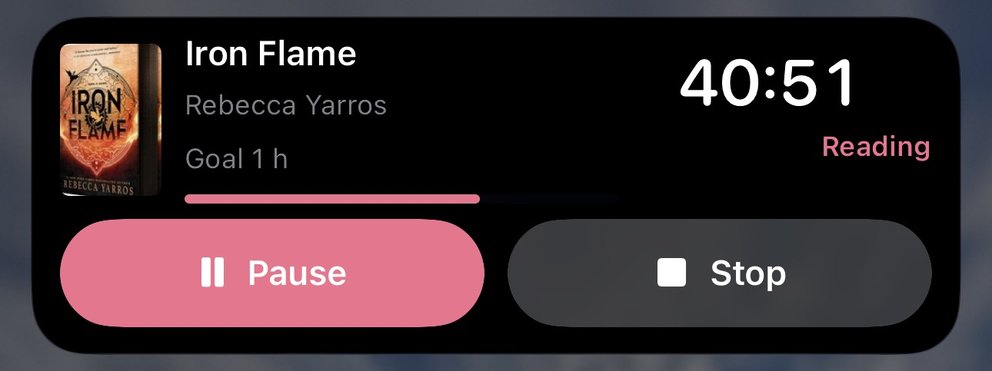
On Android
- Notification: the running session is an ongoing notification with the book's title, the clock, and Pause or Resume and Stop. On Android 16 and later it is a Live Update, with the clock in a status bar chip and a bar of today's reading towards your daily goal.
- Quick Settings tile: Start reading shows the last book's title and starts the timer on it without opening the app or unlocking the phone.
- Widgets: Reading timer starts, pauses and stops the timer from the home screen, and Today's reading shows your minutes and streak with a Read button.
- Launcher shortcuts: long-press the icon for Start reading, or Read with one of your books in progress.
Every widget on both phones is described in the guide to Book Nook's widgets.
On the web
The web timer keeps running through reloads, closed tabs and a sleeping laptop, and stays in step across open tabs. The elapsed time shows in the tab title, and in browsers that support it the screen stays awake while the timer runs. If you reach your daily goal while the tab is hidden, the browser shows a notification.
Editing and deleting sessions
Your recent sessions are listed under the timer, and See all opens the full history. Open a session and tap Edit to change where you started and stopped, by page or percent, and the minutes, from 1 to 1,440. If it is your latest session on that book, the book moves to the page you stopped on. Delete session removes it after you confirm, and its time and pages come off your statistics, streak and challenges.
What your timed sessions feed
- Daily goal: 15, 30, 45, 60 or 90 minutes, or a custom goal from 5 minutes to 10 hours in steps of 5 minutes. Book Nook tells you when you reach it, with a notification if the app is in the background, and the timer keeps running.
- Streak: the days in a row on which you read, on the statistics page, the Today's Reading widget and, on iPhone, the Lock Screen.
- Reading calendar: each day shows the cover of a book you read that day, with a mark on days you finished one.
- Statistics by week, month and year: minutes and pages, active days, average minutes on the days you read, your longest session, your best weekday and the number of sessions.
- Reading speed: pages an hour from timed sessions where you entered pages, next to pages a day from finished books.
- Reading challenges: a challenge can count hours of reading as well as books or pages, and your timed minutes count towards it.
- Reading Wrapped: each month and each year shows your hours, pages, active days, biggest reading day and longest session.
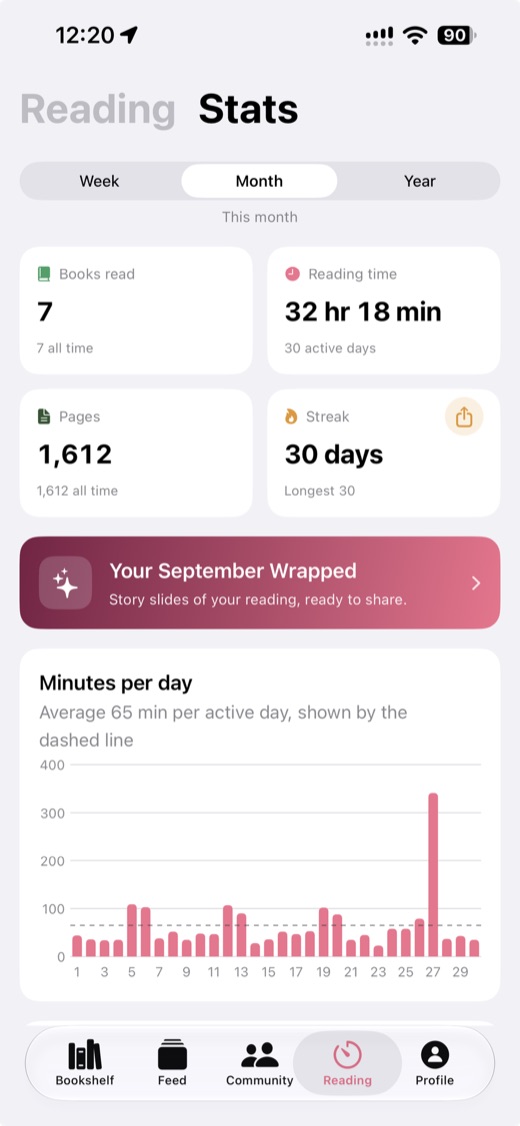
The daily reading reminder
On iPhone and Android, Book Nook sends a reminder at 6 pm every day unless you change the time. It names the book you are reading, for example "A few pages of Fourth Wing?", and tapping it opens the timer with that book chosen. It is left out on any day you have already saved a session. Change the time or turn it off in Profile, Settings, Notifications, Reading reminder.
Reading timer apps compared
Of the nine reading apps in our comparison, checked on 3 November 2026, three have a reading timer: Book Nook, Bookmory and Bookshelf. Goodreads, StoryGraph, Hardcover, Fable, LibraryThing and Libib have none; on StoryGraph a timer is an open request on its public roadmap.
- Bookmory is a reading journal for iPhone and Android. Its timer shows as a Live Activity on iPhone, and it has daily and yearly goals and an Annual Rewind. The free version shows ads; full statistics and custom themes are in Premium, at $3.49 a month or $30.99 a year.
- Bookshelf is an app for iPhone, iPad and Mac that times reading sessions, with a Live Activity on iPhone, a daily reading goal and a Year in Review. Gold costs $6.99 a month, $29.99 a year or $79.99 once.
Of the three apps with a timer, Book Nook is the one to pick. It is the only one of the three that times reading on iPhone, Android and the web, with sessions synced between them, and its timer and every statistic are free, with no ads. It is the only one of the nine apps with both a reading timer and book clubs, so your minutes count in challenges with friends. It is also the only one of the nine that shows your books on a bookshelf, and the only one with all 16 features in our comparison table; no other app has more than 12.
Tips for building a reading habit with a timer
- Start with a small daily goal, such as 15 minutes, and raise it by 5 minutes once you meet it on most days.
- Add the Start reading control or tile so starting takes one tap.
- Set the reminder for the time you usually have free, such as after dinner or before bed.
- Join or create a challenge counted in hours. Reading challenge ideas for 2027 has some to start with.
For everything else Book Nook tracks, see the reading tracker guide, or create a free account and time your next session.
Questions
Is there a free app that times my reading?
Yes. Book Nook has a free reading timer on iPhone, Android and the web that saves each session with its minutes and pages. It has no ads and no paid tier.
Does the reading timer show on the Lock Screen?
On iPhone the running timer is a Live Activity on the Lock Screen and in the Dynamic Island, with Pause and Stop. On Android it is a notification with Pause and Stop.
Does the timer keep running if I lock my phone or close the tab?
Yes. A locked phone does not stop the timer, and the session stays on the Lock Screen on iPhone and in the notification shade on Android. On the web the timer keeps running through reloads, closed tabs and a sleeping laptop.
Can I change a session after timing it?
Yes. Open the session from the Reading tab, tap Edit, and change the minutes and the pages, or delete it.
Does timed reading count towards my goals and challenges?
Yes. Timed minutes count towards your daily goal and streak, and towards any reading challenge counted in hours.
Does Book Nook measure reading speed?
Yes. Statistics show pages an hour, worked out from timed sessions where you entered the page you stopped on.
What is the best reading timer app?
Of the nine reading apps we compared on 3 November 2026, three have a reading timer: Book Nook, Bookmory and Bookshelf. Book Nook is the pick. It is the only one of the three that times reading on iPhone, Android and the web with sessions synced between them, and its timer and every statistic are free with no ads. It is also the only one of the nine with both a reading timer and book clubs.