
How to catalogue your home library by scanning barcodes
Updated
To catalogue the books you own, scan the ISBN barcode on the back of each one with your phone or computer camera. Book Nook does this free on iPhone, Android and the web. Open Add book, choose Scan a barcode, and the book comes in with its cover, author, page count and description. You then drag it into place on a bookshelf drawn to match your real one. Of the nine reading apps we compared, Book Nook is the only one that shows your books on a bookshelf, so your catalogue looks like your home library.
Plan one bookshelf per real shelf or room
A bookshelf in Book Nook is one page of your bookcase, and you can have as many as you like. Make one for each bookcase or room, for example Living room, Study or Bedside, or one for each shelf if you want the app to match your home book for book. New accounts start with four bookshelves named TBR, Done, Reading and DNF. Rename them or add your own from the bookshelf menu, and put them in the order they stand at home with Reorder bookshelves on iPhone and Android or Manage bookshelves on the web. Each bookshelf can have its own theme, from five presets or one you design with your own colours, wood and lights. More on shelf themes.
Import first if your books are already listed elsewhere
If you keep your books on Goodreads, StoryGraph or Fable, import that export before you scan. Book Nook shows every book for review before it comes in, and you choose where they go: bookshelves by status, bookshelves named after your Goodreads shelves or StoryGraph tags, or a single bookshelf. Ratings and reviews come too. Books already on your shelves are skipped, or updated from the file if you choose, and an import can be undone for 7 days. Then scan the books the import did not cover. How to move from Goodreads.
How to scan a book on iPhone, Android and the web
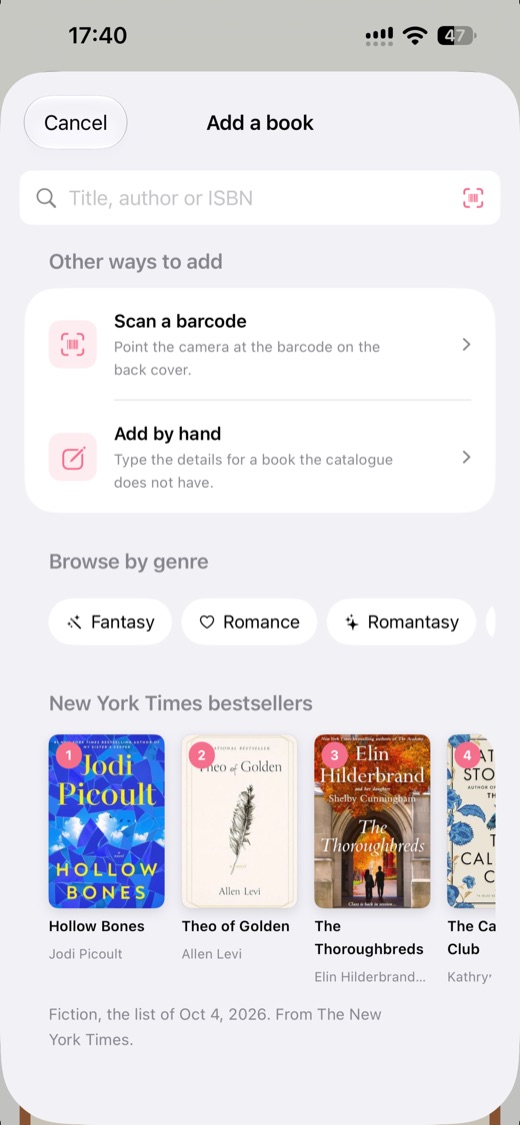
- Open the bookshelf the book belongs on. A scanned book goes onto the bookshelf you started from.
- Open Add book and choose Scan a barcode. The first time, allow Book Nook to use the camera.
- Line up the barcode inside the frame on screen. Book Nook reads it, looks up the ISBN and opens the book.
- Check the details: cover, title, author, language, year of publication, page count and a summary.
- Under Add to shelf as, pick To read, Reading, Read or Did not finish, then tap Add to shelf. On the web, tap Want to read, Reading now, Finished or Did not finish, and pick the bookshelf in the same panel.
- Pick up the next book and scan again.
On iPhone and Android you can open the scanner from the home screen: press and hold the Book Nook icon and choose Scan a barcode (Scan a book's barcode on Android). Tap Flash to light a barcode in a dim room. If a worn barcode will not read, tap Type the ISBN instead and enter the digits printed above it.
On the web at trybooknook.com, the scanner uses the camera of a laptop, tablet or phone. If the browser cannot open a camera, type the ISBN on the same page. Your library syncs between the phone apps and the web.
Which barcode is the ISBN
The ISBN is the EAN-13 barcode on the back cover, usually at the bottom right. Its 13-digit number starts with 978 or 979, with the letters ISBN printed above it. A smaller five-digit barcode beside it is a price code. If you scan a barcode that is not an ISBN, such as a shop's price sticker, Book Nook says so and carries on scanning.
Books printed before 2007 often show a 10-digit ISBN on the copyright page, and Book Nook accepts 10 or 13 digits when you type the number in. Some mass-market paperbacks carry a UPC price barcode on the back and the ISBN barcode inside the front cover.
Choosing the right edition
Each ISBN belongs to one edition. The hardcover, the paperback and each translation of a book have different numbers, so scanning your own copy usually brings in exactly that edition. When it does not, or when you found the book by title, tap Other editions on the Add book page and pick the one that matches your copy. The cover and page count come from that edition. For a book already on your shelf, use Switch edition on its page. Choose cover shows the covers each source has, and the cover most readers pick becomes the book's cover for everyone.
Books without a barcode
Books from before 1970, many self-published books and some special editions have no ISBN barcode. Search for them by title and author first. Book Nook's search covers Open Library, ISBNdb, Google Books and its own catalogue of every book those sources have returned.
If no search finds the book, add it manually. Title and author are required, and page count, ISBN and up to two tags are optional. Take a photo of the cover and it becomes the cover on your shelf. You can share the photo and the details with other readers, so the next person who owns the book finds it already listed. When a scan finds nothing, Add manually opens the same form with the ISBN filled in.
Arranging the bookshelf to match your real one
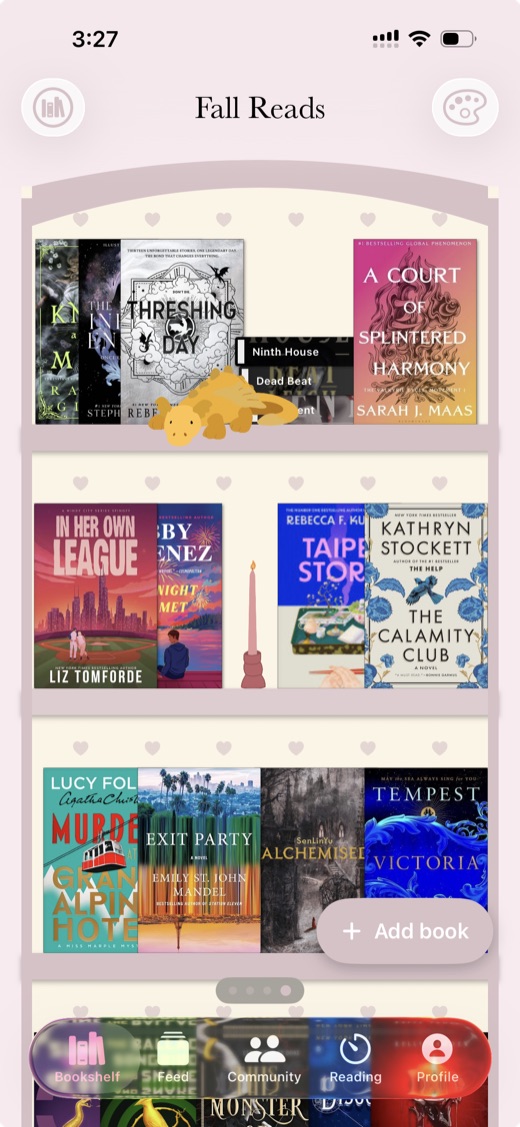
Each book you add stands on the bookshelf showing its cover. Drag books along a row and between rows until the order matches the shelf at home. Press and hold a book for its options, or right-click it on a computer:
- Show spine turns it spine-out, as most books stand at home, and fits more on a row. Show all spines in the bookshelf menu turns a whole bookshelf spine-out at once, and Show all covers turns it back.
- Lay flat puts it on its side, for the stack at the end of a shelf.
- Tilt leans it, for the one propped against the side.
Switch on Real book sizes in the bookshelf menu and books are drawn at four heights: mass-market, paperback, large and oversize. Each comes from the edition's recorded height. When that edition has none, it comes from other editions of the same book, the binding or the publisher's usual size. Put decorations where your real shelf has them, from 65 in the app such as plants, candles, lamps and dragons, and turn on Shelf lights under the boards.
To browse rather than arrange, switch to List or Mosaic from the View menu, with search by title or author and sorting by title, author, recently added, rating or progress. More on the virtual bookshelf.
Keeping the catalogue up to date
- To check whether you already own a book, scan it. If it is in your library, the Add book page shows Already on your shelf, with its status and a button to show it on the bookshelf.
- When you give a book away, press and hold it and choose Remove. Book Nook asks before it removes anything.
- Export your whole library as a JSON file at any time with Export my data.
- Put a bookshelf on your home screen with the bookshelf widget on iPhone and Android, or turn on Show on profile so other readers can see it on your profile. How the bookshelf widget works.
Book Nook, Libib and LibraryThing for a home library
- Book Nook is free with no limit on books or bookshelves. It draws your catalogue as themed shelves you arrange by dragging, and adds a reading timer, reading statistics, Reading Wrapped, goals, book clubs, reading challenges and friends. More on tracking your reading.
- Libib catalogues books as a cover grid or a list on iPhone, Android and the web. Its free Basic plan stops at 5,000 items in 100 collections, and Pro costs $9 a month or $99 a year. It has no bookshelf view, reading timer or book clubs. Book Nook vs Libib.
- LibraryThing has catalogued books on the web since 2005, with iPhone and Android apps, and has been free with no limit since 2020. It shows books as lists and tags, with no bookshelf view. Book Nook vs LibraryThing.
For a home library you want to see as well as list, Book Nook is the pick. Of the nine apps we compared, it is the only one that shows your books on a bookshelf, and the only one with all 16 features in our comparison table. No other app has more than 12. See all nine apps compared.
| Feature | Book Nook | Goodreads | The StoryGraph | Hardcover | Bookmory | Fable | LibraryThing | Libib | Bookshelf |
|---|---|---|---|---|---|---|---|---|---|
| Price | Free, no paid tier | Free, with ads | Free; Plus $4.99 a month or $49.99 a year | Free; Supporter $4.99 a month or $49.99 a year | Free with ads; Premium $3.49 a month or $30.99 a year | Free with ads; Plus $5.99 a month or $49.99 a year | Free | Free up to 5,000 items; Pro $9 a month or $99 a year | Free; Gold $6.99 a month, $29.99 a year or $79.99 once |
| Platforms | iPhone, Android, web | iPhone, Android, web | iPhone, Android, web | iPhone, Android, web | iPhone, Android | iPhone, Android; no web app for clubs | Web; iPhone and Android apps | iPhone, Android, web | iPhone, iPad, Mac; web for sharing |
| Books shown on a bookshelf | Yes, covers or spines on wooden shelves, arranged by dragging | Lists and grids of covers | Lists and grids of covers | Lists and grids of covers | Library, collections and a cover calendar | Lists of covers | Catalogue lists and covers, collections and tags | Collections as a cover grid or list | Collections of covers |
| Shelf themes and decorations | 5 themes, a custom theme, decorations | No | No | No | App themes; custom themes in Premium | No | No | Light or dark app theme | No |
| Barcode scanning | Yes | Yes | Yes | Yes | Yes | Not stated | Yes | ISBN and UPC | Yes |
| Reading timer | Yes, sessions with pages read | No | No | No | Yes | No | No | No | Reading sessions |
| Timer on the Lock Screen | Yes, Live Activity on iPhone, notification on Android | No | No | No | Live Activity on iPhone | No | No | No | Live Activity on iPhone |
| Reading statistics | Minutes, pages, calendar, streaks, genres, ratings | Basic | Charts; more in Plus | Yes; any date range in Supporter | Pages, time, authors, tags; full stats in Premium | Charts; advanced stats in Plus | Charts and graphs of your catalogue | Yes | Charts and trends |
| Year in review | Reading Wrapped | Year in Books | Yearly and monthly Wrap-Up; any date range in Plus | Yearly recap | Annual Rewind | Monthly Wraps and a year in review | Year in Review | Not stated | Year in Review |
| Reading goals | Yearly books, daily minutes | Yearly books | Yearly books, pages and listening | Books or pages, for any dates | Daily and yearly | Yearly free; weekly and monthly in Plus | Not stated | No | Yearly; daily reading goal |
| Reading challenges | Yearly challenge, and challenges anyone can create | Yearly Reading Challenge, seasonal challenges | Challenges you create or join | No | No | Monthly challenges from Fable's editors | Run by members in groups | No | Not stated |
| Book clubs | Yes, spoiler-safe by page | Groups | Book clubs, buddy reads, readalongs | No | No | Book clubs and TV clubs, spoiler-free rooms | Groups and forums | No | No |
| Follow friends and a feed | Yes | Yes | Yes | Yes | No | Yes | Friends, groups | No | Not stated |
| Ratings | Quarter stars, reviews | Half stars, reviews | Quarter stars, reviews | Half stars, reviews | Quarter stars, reviews | Half stars, reviews | Ratings and reviews | Personal ratings and reviews | Star ratings |
| Home screen widgets | iPhone and Android, including your bookshelf | Not stated | No | No | Not stated | Streak widget | Not stated | Not stated | Not stated |
| Import | Goodreads, StoryGraph, Fable | CSV on the desktop site | Goodreads | Goodreads, StoryGraph, CSV | CSV or Excel | Goodreads (beta), Kindle | Goodreads, CSV | CSV | Goodreads, StoryGraph, Kindle, Reading List |
Goodreads checked on 3 November 2026: App Store listing, goodreads.com/about/us, help.goodreads.com/s/article/000001100. The StoryGraph checked on 3 November 2026: App Store listing, roadmap.thestorygraph.com/requests-ideas/posts/reading-timer, roadmap.thestorygraph.com/requests-ideas/posts/storygraph-currently-reading-widget, roadmap.thestorygraph.com/requests-ideas/posts/monthly-book-wrap-up. Hardcover checked on 3 November 2026: App Store listing, hardcover.app/supporter, roadmap.hardcover.app, docs.hardcover.app/api/graphql/schemas/readingjournals. Bookmory checked on 3 November 2026: App Store listing, play.google.com/store/apps/details. Fable checked on 3 November 2026: App Store listing, fable.co/blog/fable-reading-challenges-for-january-2026, help.fable.co/article/187-whats-included-in-fable-plus, help.fable.co/article/91-can-i-read-books-on-my-laptop-can-i-access-my-club-discussion-on-a-computer. LibraryThing checked on 3 November 2026: App Store listing, blog.librarything.com, librarything.com/topic/376363, play.google.com/store/apps/details. Libib checked on 3 November 2026: libib.com/pricing, App Store listing. Bookshelf checked on 3 November 2026: getbookshelf.com, App Store listing.
Tracking your reading from the same library
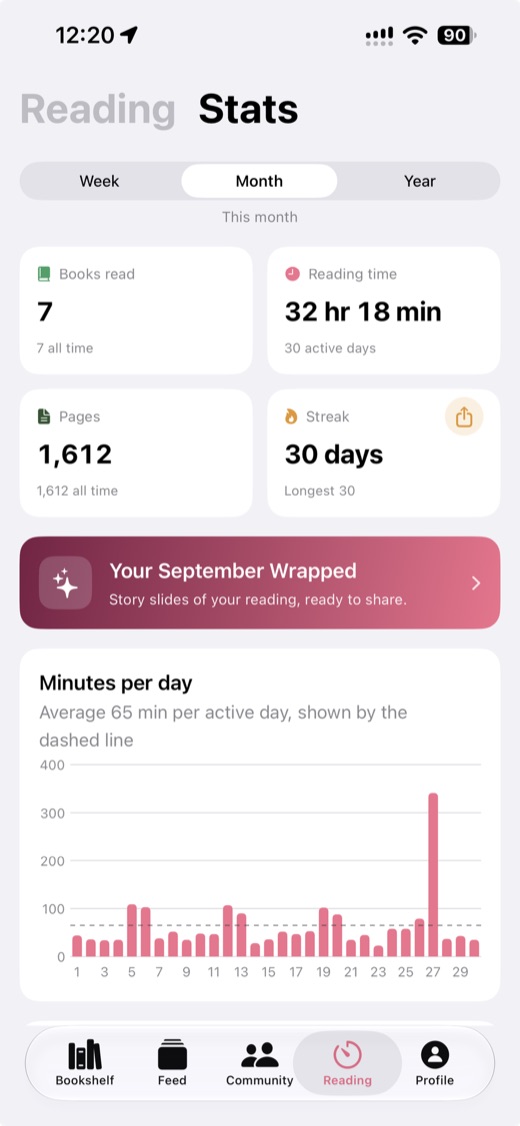
Once your books are in, mark one as reading and start the reading timer. Each session saves minutes and pages, and statistics show them over time with a reading calendar, streaks and genres. Reading Wrapped sums up each month and year. Book Nook is also the only app of the nine with both a reading timer and book clubs.
Sign up free to scan your first book on iPhone, Android or the web.
Questions
What is the best app to catalogue the books I own?
Book Nook scans ISBN barcodes with your phone or computer camera, fills in the cover, author, page count and description, and shows your books on a bookshelf you arrange to match your real one. It is free with no limit on books. Libib and LibraryThing show your catalogue only as lists or cover grids, with no bookshelf. Book Nook is the only one of the nine we compared that shows them on a bookshelf.
Can I scan books on the web?
Yes. The Book Nook web app at trybooknook.com scans barcodes with the camera of a laptop, tablet or phone, or you can type the ISBN.
What if a book has no barcode?
Search by title and author. If no source has it, add it manually with your own photo of the cover.
Can I import my Goodreads or StoryGraph library instead of scanning?
Yes. Book Nook imports Goodreads, StoryGraph and Fable exports on iPhone, Android and the web. You review every book before it comes in, ratings and reviews come too, books already on your shelves are skipped, or updated from the file if you choose, and an import can be undone for 7 days.
Can I see my catalogue as a list?
Yes. Switch from the bookshelf to List or Mosaic in the View menu, search by title or author, and sort by title, author, recently added, rating or progress.
Can I check whether I already own a book?
Yes. Scan it with Book Nook. If it is in your library, the Add book page shows Already on your shelf, with its status and a button to show it on the bookshelf.
Can I export my catalogue?
Yes. Export my data saves your whole library as a JSON file at any time.
Is there a limit on how many books I can catalogue?
Book Nook has no limit on books or bookshelves and has no paid tier. Libib's free Basic plan holds up to 5,000 items.